Reveal URLs — User Manual
Reveal URLs is a small browser extension (and Thunderbird add-on) that shows you where a link in your email really goes, so you can spot a phishing link before you click it.
This manual explains how to install Reveal URLs and how to use it. For common questions, see the FAQ; for how your data is handled see the privacy policy; for a technical overview see the architecture overview.
Found a bug, a link that was flagged wrongly (or missed), or a webmail host that should be supported? Please report it on the Codeberg issue tracker.
Contents
- What it does and why
- Supported browsers and mail apps
- Installing
- Using it
- The Outlook and Gmail add-ons
- Languages
- Privacy
- Troubleshooting
- Licence and source
What it does and why
A phishing email hides a hostile destination behind trustworthy-looking link
text. Sometimes it is a look-alike host: the text reads paypal.com while the
link points at paypa1.com. Often it is subtler, routing through a tracker or
redirector, so where you land is nothing like the brand named in the text.
This is not hypothetical. The message below is a real phishing email dressed up as a parcel-delivery notice from a postal service:
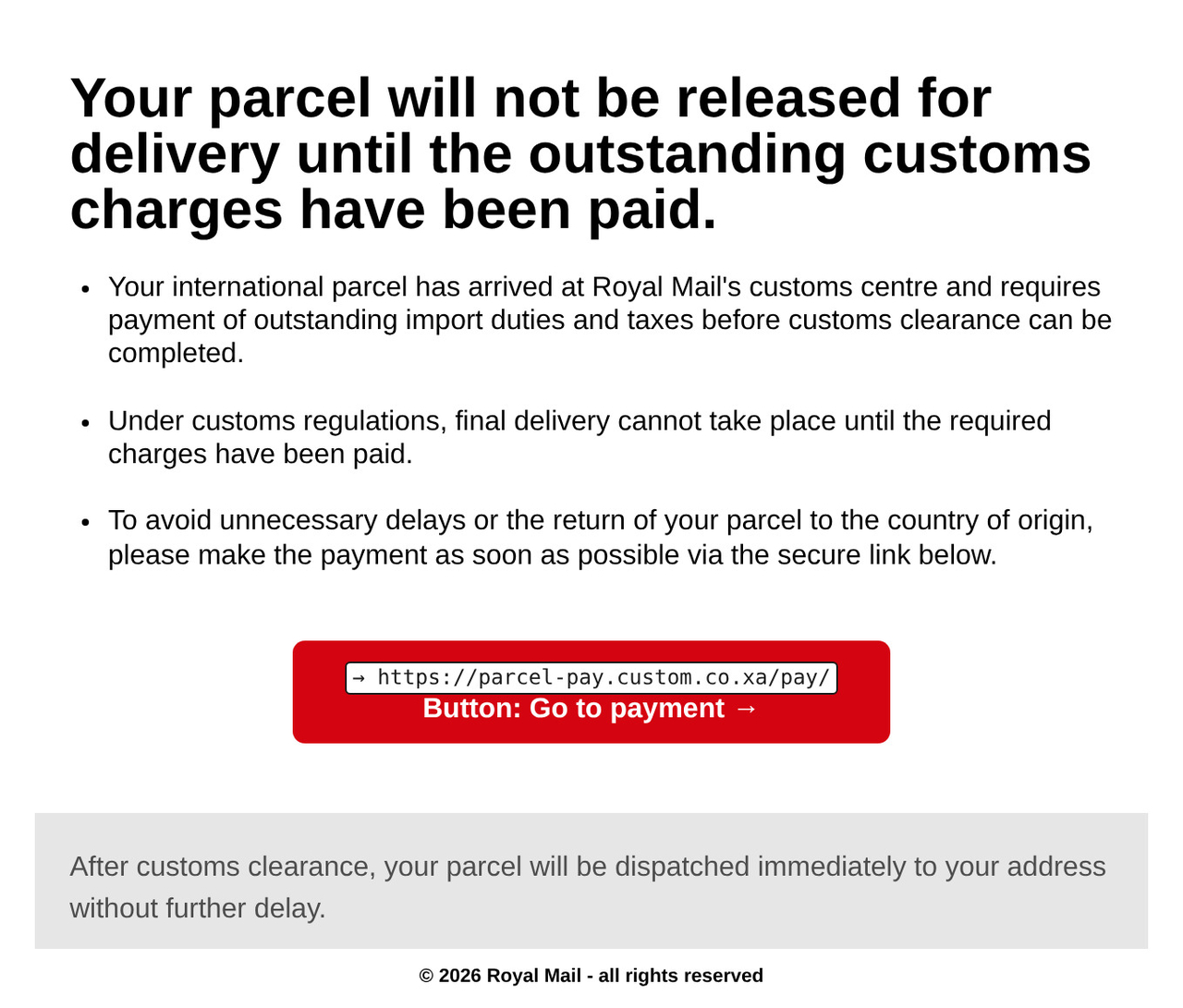
parcel-pay.custom.co.xa, not the postal service it impersonates.Note: This screenshot shows a fraudulent phishing email impersonating a postal service. The impersonated service is not affiliated with Reveal URLs and does not endorse it.
Reveal URLs reads each link in the message you are reading and shows you the URL it points to. In the browser extension and Thunderbird, it flags misleading web, email, phone and other links, so the mismatch is obvious before you click.
Reveal URLs reveals and flags; it does not vet. It does not follow redirects: a link that passes through a tracker or redirector is revealed as the redirector URL it actually names, and Reveal URLs cannot tell where that redirect finally lands. A link with no warning has had no applicable mismatch detected, not confirmed as safe, so read the revealed URL before you trust a link even when nothing is flagged. To keep that in mind, the revealed URL on an unflagged link is shown in an amber "review" colour rather than a reassuring green.

Note: email addresses, URLs and names in this screenshot have been masked with asterisks for privacy.
In the browser extension and the Thunderbird add-on, everything happens on your own device, transmitting nothing. Across every form, Reveal URLs sends none of your email data to us or to any third party — there is no analytics and no tracking. (The forms differ in where they run and how the Outlook pane's code is served; see the Privacy section and the privacy policy for the full details.)
Supported browsers and mail apps
Reveal URLs runs on:
Web browsers:
- Brave
- Google Chrome
- Microsoft Edge
- Mozilla Firefox
- Opera
- Safari
Mail applications:
- Gmail
- Outlook
- Mozilla Thunderbird (the desktop mail client)
On the browser targets, Reveal URLs annotates the links in your webmail. In Thunderbird it annotates the links in the email you are reading directly in the mail client.
Installing
From your browser's or mail client's store (recommended)
Install Reveal URLs from the store for your browser or mail client. Every listing is available now.
Web browsers:
- Brave — install the Chrome version from the Chrome Web Store
- Chrome — the Chrome Web Store
- Edge — Microsoft Edge Add-ons
- Firefox — Firefox Add-ons (AMO)
- Opera — install the Chrome version from the Chrome Web Store
- Safari — the App Store (Safari extension)
Mail applications:
- Gmail — Google Workspace Marketplace (Gmail add-on), available in Gmail on the web, Android and iOS
- Outlook — Microsoft Marketplace (Outlook add-in), available for Outlook on the web and the desktop app
- Thunderbird — Thunderbird Add-ons (ATN)
Loading a build yourself (developers and early testing)
If you have built Reveal URLs from source, you can load the unpacked build
directly. Each target is built with a make command and produced under
dist/<target>/:
make build-chrome        # produces dist/chrome
make build-edge          # produces dist/edge
make build-firefox       # produces dist/firefox
make build-gmail         # produces dist/gmail
make build-opera         # produces dist/opera
make build-outlook       # produces dist/outlook
make build-safari        # produces dist/safari
make build-thunderbird   # produces dist/thunderbird
Then load the resulting folder:
- Chrome — open
chrome://extensions, turn on Developer mode, click Load unpacked and selectdist/chrome. - Edge — open
edge://extensions, turn on Developer mode, click Load unpacked and selectdist/edge. - Firefox — open
about:debugging, choose This Firefox, click Load Temporary Add-on and select any file insidedist/firefox(for example itsmanifest.json). A temporary add-on is removed when Firefox restarts. - Opera — open
opera://extensions, turn on Developer mode, click Load unpacked and selectdist/opera. - Thunderbird — install the temporary add-on from
dist/thunderbirdthe same way (via Tools → Developer Tools → Debug Add-ons → Load Temporary Add-on).
The Safari extension, Outlook add-in and Gmail add-on are not loaded as unpacked browser extensions. Build them as above, then:
make deploy-gmail        # deploy the Gmail add-on to Apps Script (it runs on
                         # servers operated by Google LLC, so it is deployed rather than loaded locally)
make safari-xcode        # scaffold the Safari Xcode project, then run the extension
                         # from Safari's Develop menu (macOS)
                         # Outlook: sideload dist/outlook — see The Outlook and Gmail add-ons
The settings page opens automatically the first time the extension is installed.
Using it
Out of the box, Reveal URLs annotates the links in messages on the built-in providers — no setup required:
- FastMail (
app.fastmail.com) - Gmail (
mail.google.com) - Outlook Live (
outlook.live.com) - Outlook on the web / Microsoft 365 (
outlook.office.com) - Proton Mail (
mail.proton.me) - Tuta (
app.tuta.com,mail.tutanota.com) - Yahoo Mail (
mail.yahoo.com) - Zoho Mail (
mail.zoho.com.au,mail.zoho.com.cn,mail.zoho.com,mail.zoho.eu,mail.zoho.in,mail.zoho.jp,mail.zoho.sa,mail.zohocloud.ca)
Annotation is scoped to the message body, so the app's own chrome — its sidebar, compose window and toolbars — is left untouched. In Thunderbird, the whole rendered email is covered.
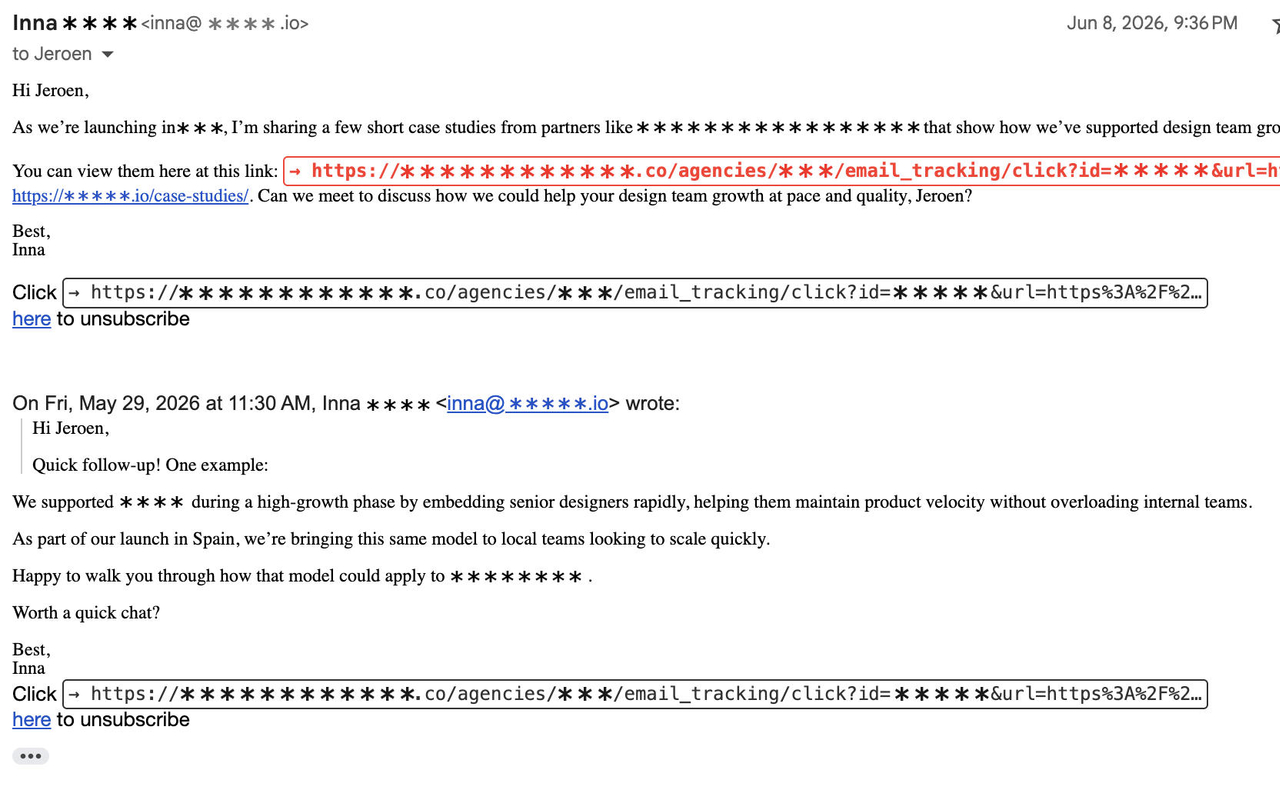
Note: email addresses, URLs and names in this screenshot have been masked with asterisks for privacy.
How the real URL is shown
The real URL of each link is shown on its own line, just above the link text. It is also placed in the link's tooltip (title), so the full URL is always there when you hover over the link.
Mismatch highlighting
For web links, Reveal URLs compares URL or host names in a link's visible text with
the URL it points to. The comparison is done on the registrable domain, so a
non-mismatching sub-domain such as mail.example.com for example.com is not
flagged, while a look-alike such as paypa1.com for paypal.com is. The
browser extension and Thunderbird also assess email, phone and opaque links;
javascript:, data: and
vbscript: links are always flagged.
The check looks only at the URL the link itself names; redirects are never followed, so a link that passes through a tracker or redirector is compared as the redirector URL it names, not the page it ultimately reaches.
A mismatch is shown in your chosen mismatch colour and in bold.
Two related settings control this:
- Highlight mismatching links turns the mismatch emphasis on or off.
- Only reveal mismatching links inline hides the visible inline reveal for non-mismatching links, but still puts their destination URL in the link's title, so it appears on hover.
The toolbar button
In Chrome, Edge, Opera, Firefox and Thunderbird, the Reveal URLs toolbar icon is a quick on/off switch — click it to toggle annotation. When the extension is switched off, an OFF badge appears on the icon, and its tooltip tells you whether clicking will turn it on or off. In the browsers the change takes effect in every open tab at once; in Thunderbird it applies to the next message you open.
While Reveal URLs is switched on, the browser toolbar icon also tells you, per tab, what it found on the current page. If the page has any mismatching (look-alike) links, the icon shows that count on a red badge; if the page has links but none of them mismatch, it shows the total number of analysed links on a grey badge; a matched page with no analysable links shows no count. On a page Reveal URLs is not active on (one you have not added to Active sites), the toolbar icon itself appears in a muted, light grey instead of its normal colour, so you can tell the extension is switched on but simply not watching this page. Each tab keeps its own badge and icon, so switching tabs updates them, and navigating away or closing the tab clears the badge. (Counts above 99 show as 99+.)
The grey count is not a safety verdict: it is how many links were analysed on a page with no look-alike mismatch, not a guarantee that those links are safe. Read the revealed URLs before you trust them.
On Safari, only a mismatching-link badge is shown. Safari deliberately suppresses the grey safe-page count because it renders every badge as a warning colour.
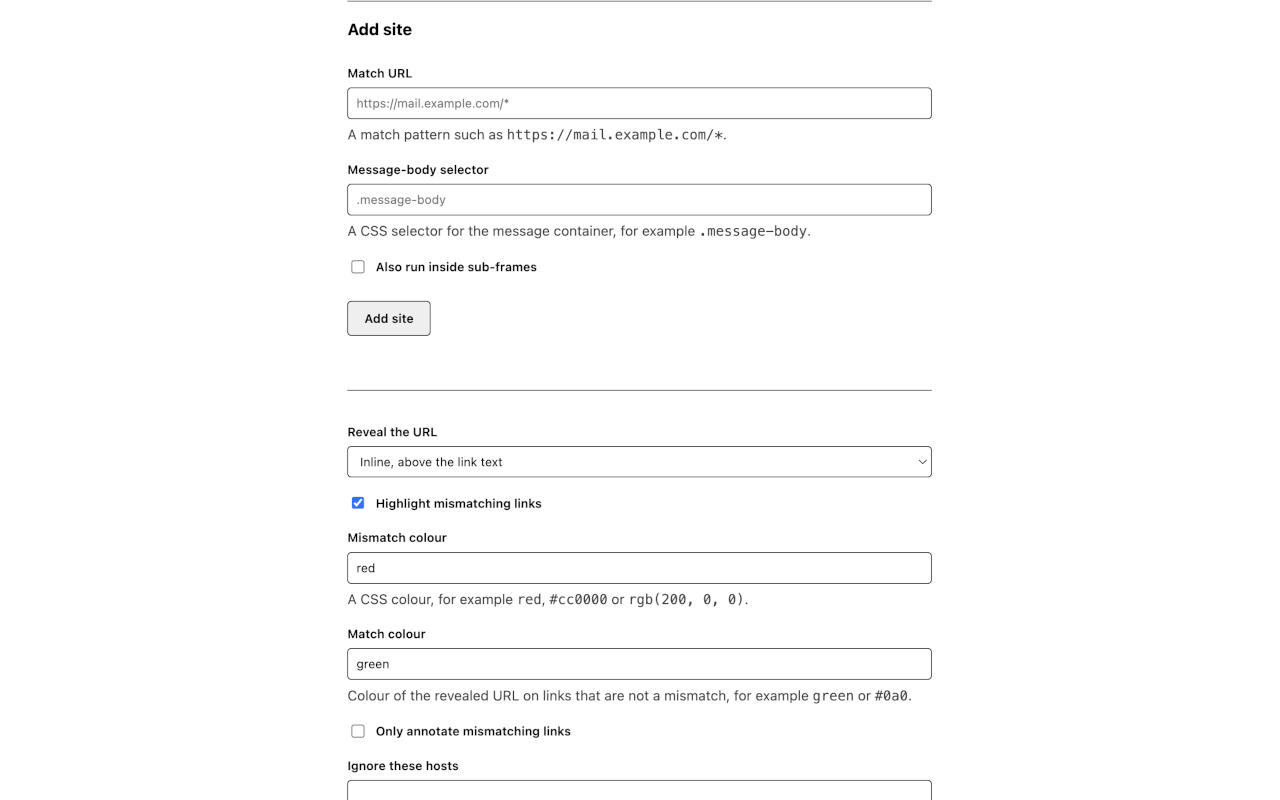
The badge in its states (the browser draws it, so exact placement varies a little by browser): a red mismatch count, a grey analysed-links count, and the OFF badge while the extension is disabled; its logo is also muted light grey. On a page the enabled extension is not active on there is no badge; the missing OFF badge distinguishes that same muted logo from the disabled state.
These illustrations show representative states, not every no-badge outcome. An enabled active page with no analysable links keeps the normal-colour icon without a badge; the muted icon below means the enabled extension is not active on this page.




(In Thunderbird the button shows only its icon, so it stays compact in the unified toolbar. You can also turn Reveal URLs on and off with the Enable switch on the settings page.)
The settings page
The settings page holds every option. Open it from your browser's extensions page (for example Details → Extension options), or it opens automatically on first install.
On Safari, reopen settings from the right-click Reveal URLs — settings menu on the toolbar icon or a page. Do not reload a stale settings tab: Safari can show it as an empty document.
- Enable Reveal URLs — the master on/off switch, at the very top of the page. It takes effect immediately, without needing to save the rest of the form.
- Display language — choose the language the settings page is shown in. By default it follows your browser's language, falling back to English; pick another from the list to override it. Your choice takes effect at once, is remembered for next time, and is stored only on this device (it never changes the rest of your settings).
- Highlight mismatching links — turn mismatch emphasis on or off.
- Mismatch colour — the CSS colour used for a flagged link (for example
red,#cc0000orrgb(200, 0, 0)). The default is red. - Non-mismatch colour — the colour of the revealed URL on non-mismatching
links (for example
blackor#b45309). The default is an amber "review" tone (#b45309), chosen so an unflagged link reads as "check this", not as a green all-clear that implies the link has been verified as safe. - Only reveal mismatching links inline — hide the visible inline reveal for non-mismatching links; their destination URL remains in the link's title and appears on hover.
- Ignore these hosts — a list of hostnames to skip entirely, one per line. Sub-domains of a listed host are skipped too.
- Maximum displayed URL length — long URLs are truncated past this many characters, keeping the host visible. Allowed range: 20 to 2000.
- Revealed URL font size / weight — optional typography overrides; leave blank to keep the defaults.
Apart from the master Enable switch and the Active sites controls (which apply immediately), changes are saved with the Save settings button.
Active sites — adding your own webmail
The Active sites section, at the top of the settings page, lists the pages Reveal URLs runs on. It now stays a fixed height: choose one site from the dropdown, then edit only that site's settings in the panel below.
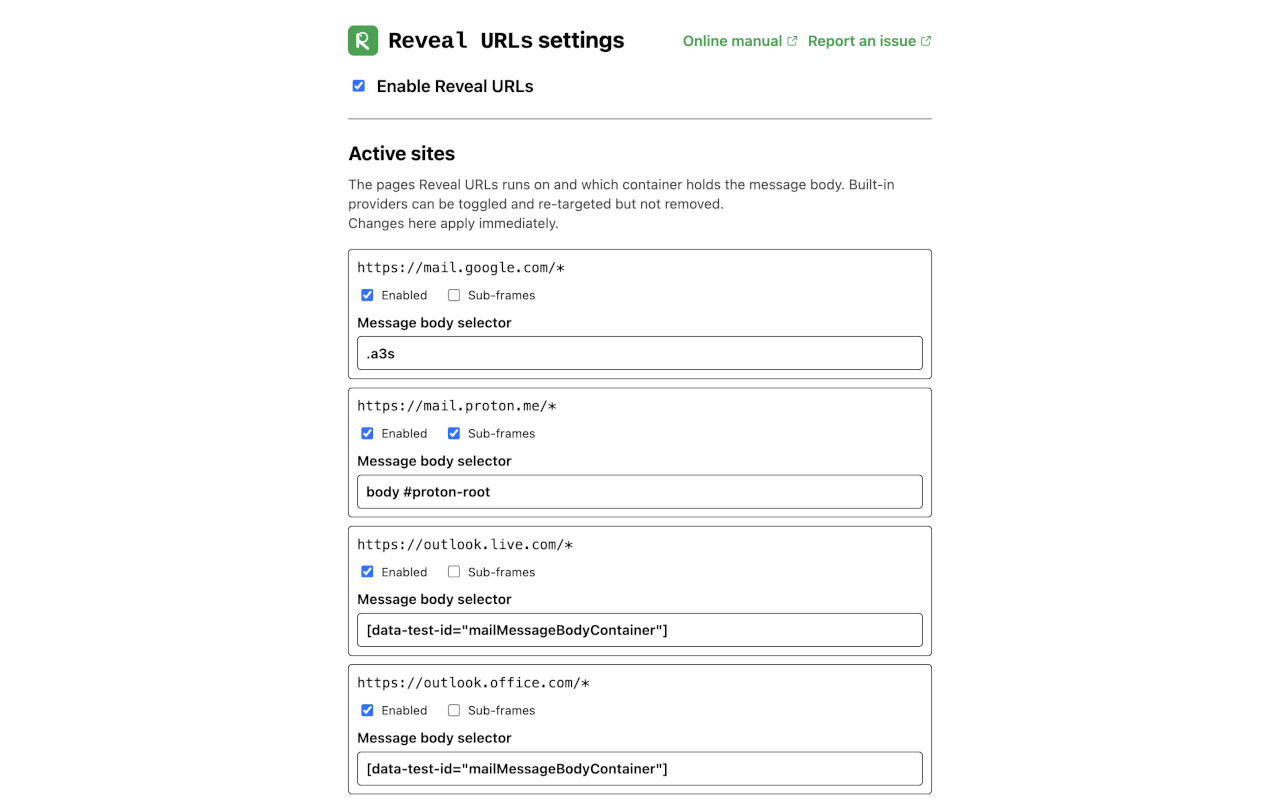
The dropdown shows one entry per site rule:
- built-in rules use friendly names such as
Gmail,Proton MailandOutlook (Live); - when several rules share one name, the dropdown adds the host in
parentheses, for example
Tuta (app.tuta.com)andZoho Mail (mail.zoho.eu); - a user-added rule uses its optional Name, or its match URL when left blank.
The selected-site editor shows:
- the site's Match URL as a read-only identifier;
- the site's editable Name;
- an Enabled toggle;
- the Message-body selector (the CSS selector for the container Reveal URLs annotates), which you can edit;
- a Sub-frames toggle, for sites whose message body is rendered inside an iframe;
- a Remove button for your own sites only.
The built-in providers (FastMail, Gmail, Outlook Live, Outlook 365, Proton, Tuta, Yahoo and Zoho) can be toggled off and re-targeted, but they cannot be removed. Their names can also be renamed here; clearing a built-in name restores its default friendly name.
To add your own webmail site:
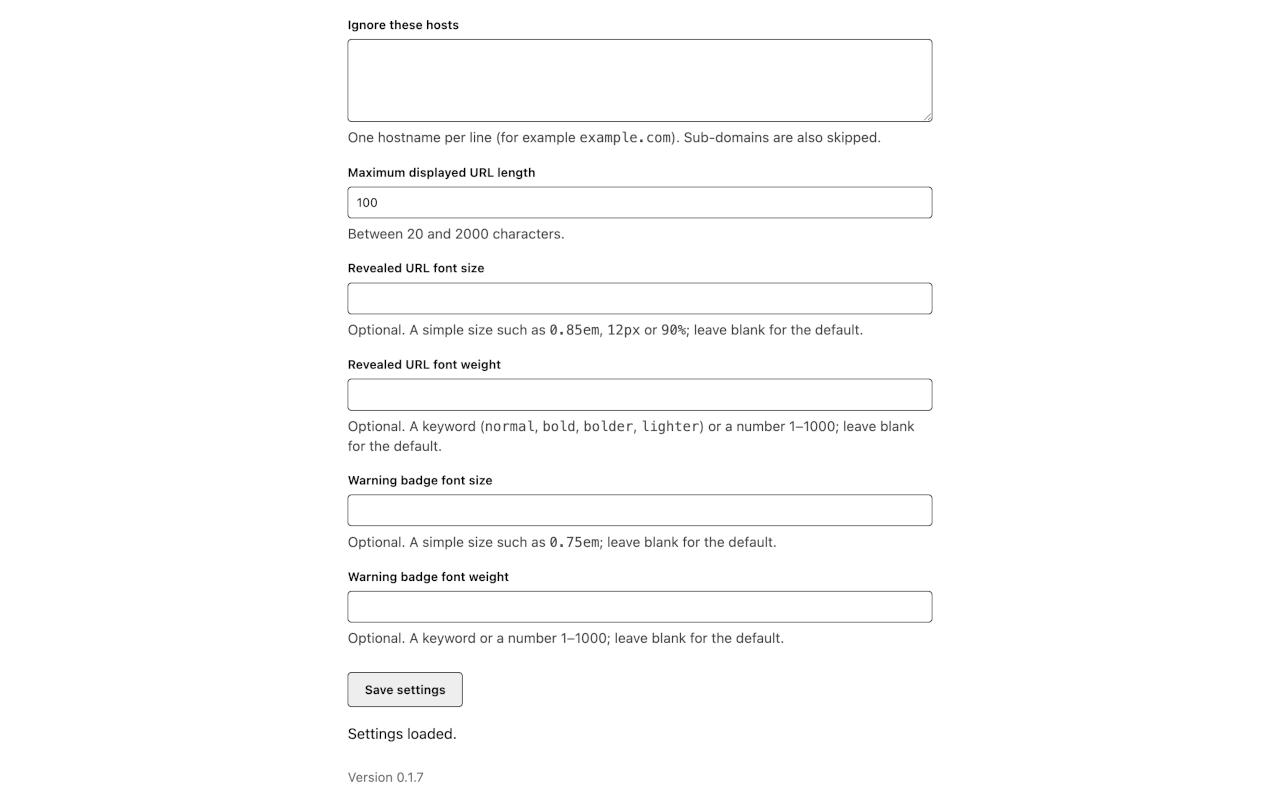
- Under Add site, enter a Match URL — a match pattern such as
https://mail.example.com/*. - Optionally enter a Name for the dropdown. Leave it blank to fall back to the match URL.
- Enter a Message-body selector — a CSS selector for the container that
holds the message body, for example
.message-body. - If the message body is rendered inside a sub-frame, tick Also run inside sub-frames.
- Click Add site. Your browser will ask for permission to access that site; grant it. The site is only added once you grant the permission.
Changes here apply immediately. Removing a site you added also revokes its permission, so Reveal URLs stops accessing it. To change a site's match URL, remove it and add it again: the match stays read-only because it is the rule's identity.
Thunderbird (and other mail clients). Thunderbird already shows every message you read, whatever the provider, so it has no need for a per-host list. The Active sites section is therefore not shown on the Thunderbird settings page — only the master switch, display language, colours, fonts and the ignore-list appear. Any active-sites configuration you may have set in a browser is preserved untouched: saving the Thunderbird settings never clears it.
The Outlook and Gmail add-ons
Alongside the browser extension and the Thunderbird add-on, Reveal URLs comes as a
native add-on for two mail apps a browser extension cannot reach: an Outlook
add-in and a Gmail add-on. They share the browser extension's http/https
URL/host detection, but do not analyse its additional link schemes.
The one difference is how they show their findings. The browser extension annotates
the links in place — colouring the URL above or beside each link. The Outlook and
Gmail frameworks do not allow an add-on to change the rendered message, so instead
each add-on shows a side panel (Outlook) or card (Gmail) listing the links it
found. For each http/https link it shows the visible text and destination URL,
and flags a mismatch only when the visible text contains a URL or host name whose
registrable domain does not match the one the link actually points to.
- Outlook add-in — a task pane that reads the message you have open and analyses it on your own device; no email or message data is sent anywhere. Its task-pane code (HTML, JavaScript, CSS and icons) is loaded from https://www.reveal-urls.eu over HTTPS, as happens when you open any web page. It is available now on Outlook on the web and the Outlook desktop app on Windows and Mac (and Outlook.com); Outlook mobile (iOS and Android) is not yet available and is planned for a later update.
- Gmail add-on — a card in Gmail's sidebar. Open a message, then click the Reveal URLs icon in the right-hand sidebar to see its links: Gmail does not pop the card open by itself, but if you leave the panel open it refreshes as you move between messages. A look-alike link is flagged in red with a warning icon; a non-mismatching link's URL is shown in the card's default text colour, which follows Gmail's light or dark theme. It reaches Gmail on the web, Android and iOS. Unlike the other forms, the Gmail add-on runs on servers operated by Google LLC (this is how Gmail add-ons work): the message you open is read and checked there, each time you open it, and is not retained. See the privacy policy for what each form accesses and stores.
The Outlook add-in is published on Microsoft Marketplace and can be installed from its listing (linked from the Reveal URLs website and the project README). It is available for Outlook on the web and the Outlook desktop app; Outlook mobile is not yet available and is planned for a later update. The Gmail add-on is available now through the Google Workspace Marketplace for Gmail on the web, Android and iOS.
Languages
Reveal URLs is available in English and many other languages.
- The settings page follows your browser's language automatically, falling back to English when your language is not one of the above. You can override it at any time with the Display language switcher near the top of the page; your choice is remembered on that device (see The settings page).
- This website (the home page and these documentation pages) detects your browser's language too and offers a language switcher in the header. The manual and privacy pages are available translated; where a page has no translation yet, it is shown in English.
The non-English text is machine-translated and is pending human review, so a phrase may occasionally read awkwardly; the meaning is intended to match the English original. If you spot a mistranslation, please open an issue on the Codeberg issue tracker.
Privacy
Reveal URLs sends none of your email or message data to us or to any third party, in any of its forms — there is no analytics and no tracking. How and where the work happens depends on the form:
- The browser extension and the Thunderbird add-on work entirely on your own device and transmit nothing: they read the link text, URLs and the page's colours as the page renders, never storing or sending them.
- The Outlook add-in analyses the open message on your own device and sends no email or message data anywhere; its task-pane code (HTML, JavaScript, CSS and icons) is loaded from https://www.reveal-urls.eu over HTTPS, as happens when you open any web page.
- The Gmail add-on runs on servers operated by Google LLC (this is how Gmail add-ons work): the open message is read and checked there, each time you open it, and is not retained.
The only thing stored is your own settings (such as enabled/disabled, colours, font sizes, your ignore-list and any sites you have added), kept in your browser's or Outlook's storage, or per-user storage provided by Google LLC, and never sent to us.
See the privacy policy for the full details.
Troubleshooting
A link is not being revealed.
- Check that Reveal URLs is switched on — the toolbar icon must not show the OFF badge, and the Enable Reveal URLs switch on the settings page must be on.
- Check that the site is covered. Built-in providers (FastMail, Gmail, Outlook Live, Outlook 365, Proton, Tuta, Yahoo, Zoho) work out of the box; any other webmail must be added under Active sites with its match URL and message-body selector.
- Check the message-body selector. If it does not match the container that holds the message body, links inside that container will not be revealed.
- Open-shadow providers are discovered by the per-batch body scan as soon as a body-observer batch runs after the host enters the DOM. A late shadow root is upgraded on the next body mutation batch. The only unsupported case is a host or shadow root appearing and then no further body mutation ever firing for the page.
- The browser extension and Thunderbird also reveal links that use other schemes —
mailto:(email),tel:/sms:(phone) and opaque schemes such asjavascript:,data:orblob:— and flag them when the visible text names a different destination than the link actually points to;javascript:,data:andvbscript:links are always flagged (for example an address shown asbilling@paypal.comwhosemailto:targets another domain, or a link that reads like a web address but is really ajavascript:link). Only links to in-page anchors (#…) and empty or unparseable links are skipped, as are hosts on your Ignore these hosts list. Note this broader scheme coverage applies to the browser extension's inline annotation; the native Outlook and Gmail add-on findings panels currently coverhttp/httpslinks only.
A built-in provider stopped working after a redesign.
Webmail providers change their page markup from time to time. If a built-in provider's selector no longer matches after such a change, you can correct it yourself: in Active sites, edit that provider's message-body selector to the new container.
Licence and source
Reveal URLs is free software, licensed under the GNU Affero General Public License v3.0 (AGPL-3.0-only).
- Source code: https://codeberg.org/Magentron/reveal-urls
- Technical overview: Architecture
- Further reading on link phishing: Email link phishing: your app should always show the URL
Safari notes
Safari shows a badge only when links mismatch; it has no grey safe-page count. Reopen settings with the right-click Reveal URLs — settings menu, rather than reloading a stale settings tab.